For Developers · Monetization Ads Provider
Lootlabs
Lootlabs is one of the highest-paying ad providers for Panda Auth services. Setup takes two pieces — any Lootlabs link (even an existing one), and your Lootlabs API Token. The Secured Lootlabs variant uses the same steps and is documented separately.
Before you start
You need a Lootlabs publisher account. Sign up or log in at lootlabs.gg before continuing.
Step 1 — Create or copy a Lootlabs link
Log into your Lootlabs dashboard. You need any Lootlabs link — if you already have one, you can reuse it. The destination of the link does not have to be Panda Auth; even an unrelated existing link works because Panda Auth overrides the destination at checkpoint time.
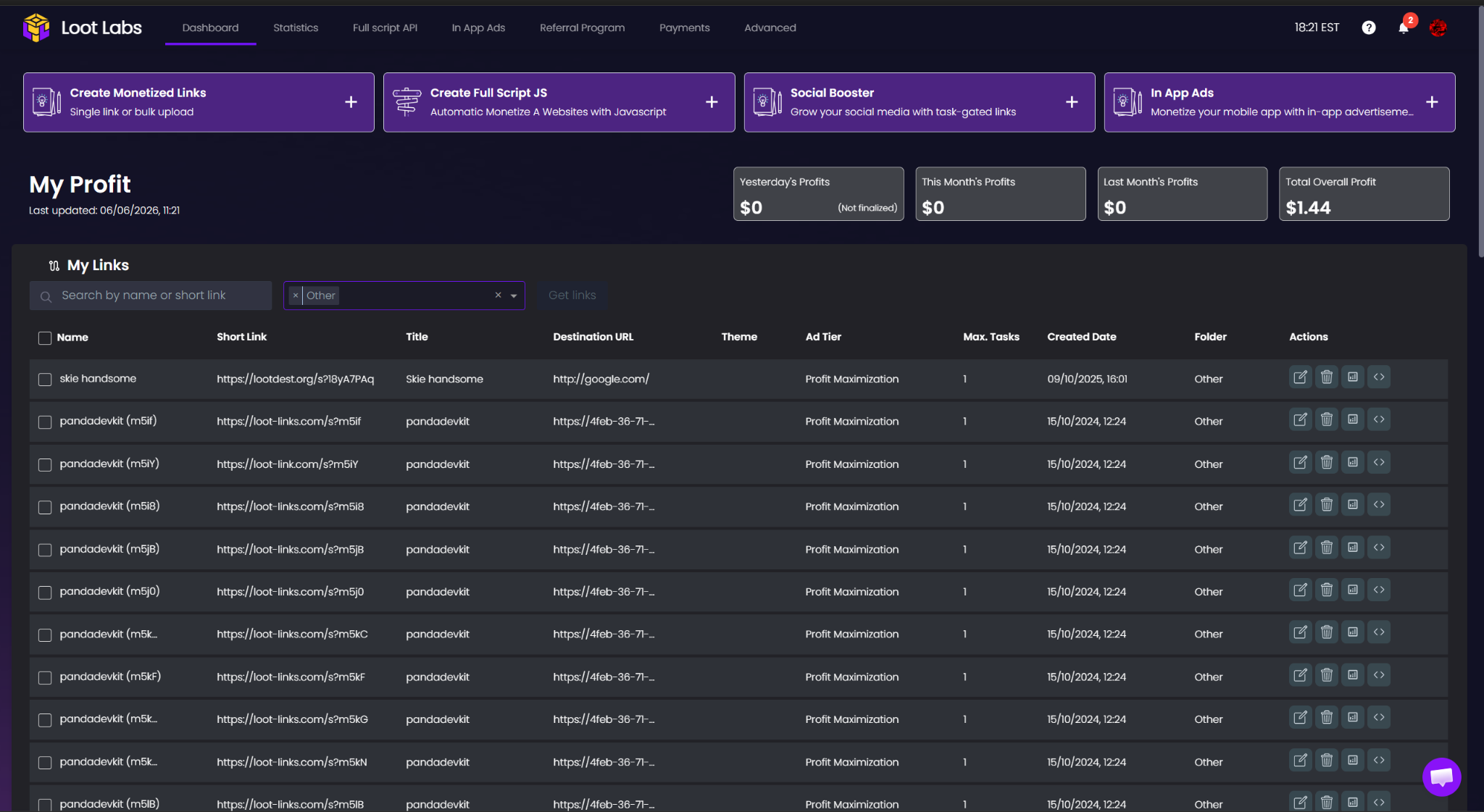
Step 2 — Paste the Lootlabs link into Panda Auth
Switch to Panda Auth, go to Monetization Settings → Revenue Settings, select Lootlabs from the Revenue Mode dropdown, and paste the Lootlabs link into the Link field.
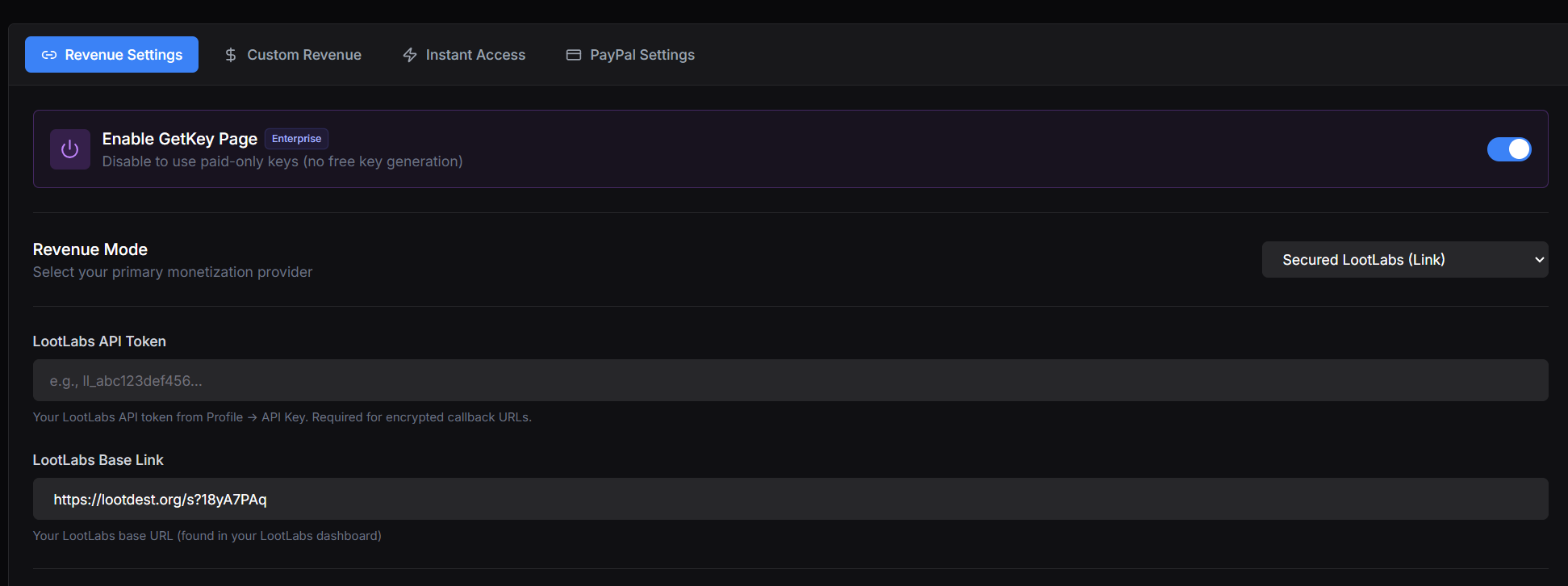
Step 3 — Get your Lootlabs API Token
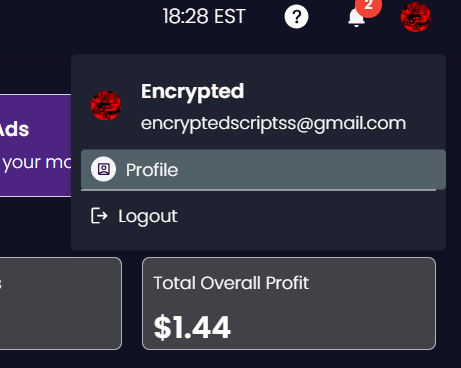
Back in Lootlabs, click your profile menu in the top right to open account settings.
Navigate to API Key.
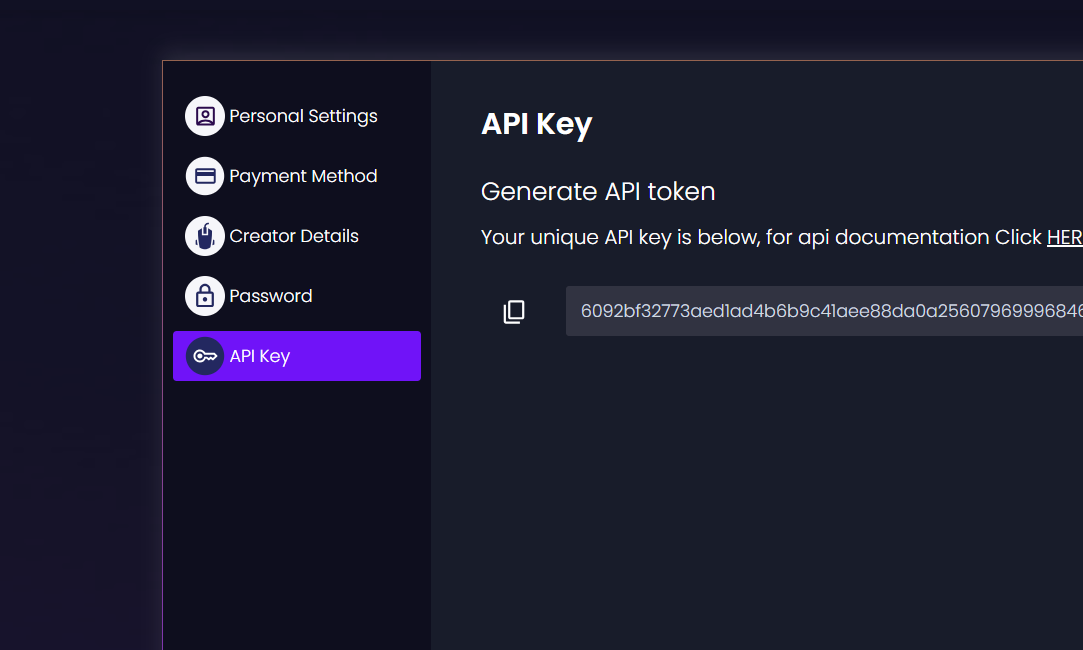
Copy your API token.
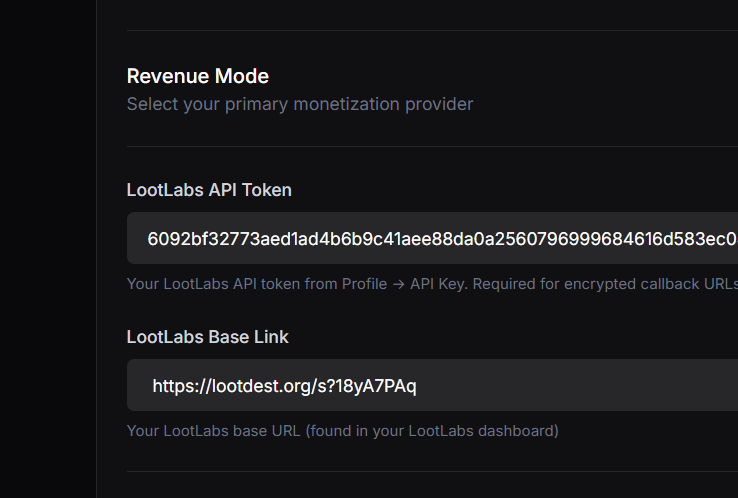
Step 4 — Paste the API Token into Panda Auth and save
Paste the Lootlabs API token into the API Token field in Panda Auth, then click Save Changes.
Done
Want stronger anti-bypass?