For Developers · Monetization Ads Provider
Work.ink
Work.ink is one of the simpler providers to set up — you only need an API Key. The path through the Work.ink dashboard takes a few clicks (Integration → Link API → API Keys → Show → Generate), but each step is straightforward.
Before you start
You need a Work.ink publisher account. Sign up or log in at dashboard.work.ink before continuing.
Step 1 — Open the Work.ink dashboard
Log into dashboard.work.ink to reach the publisher dashboard.
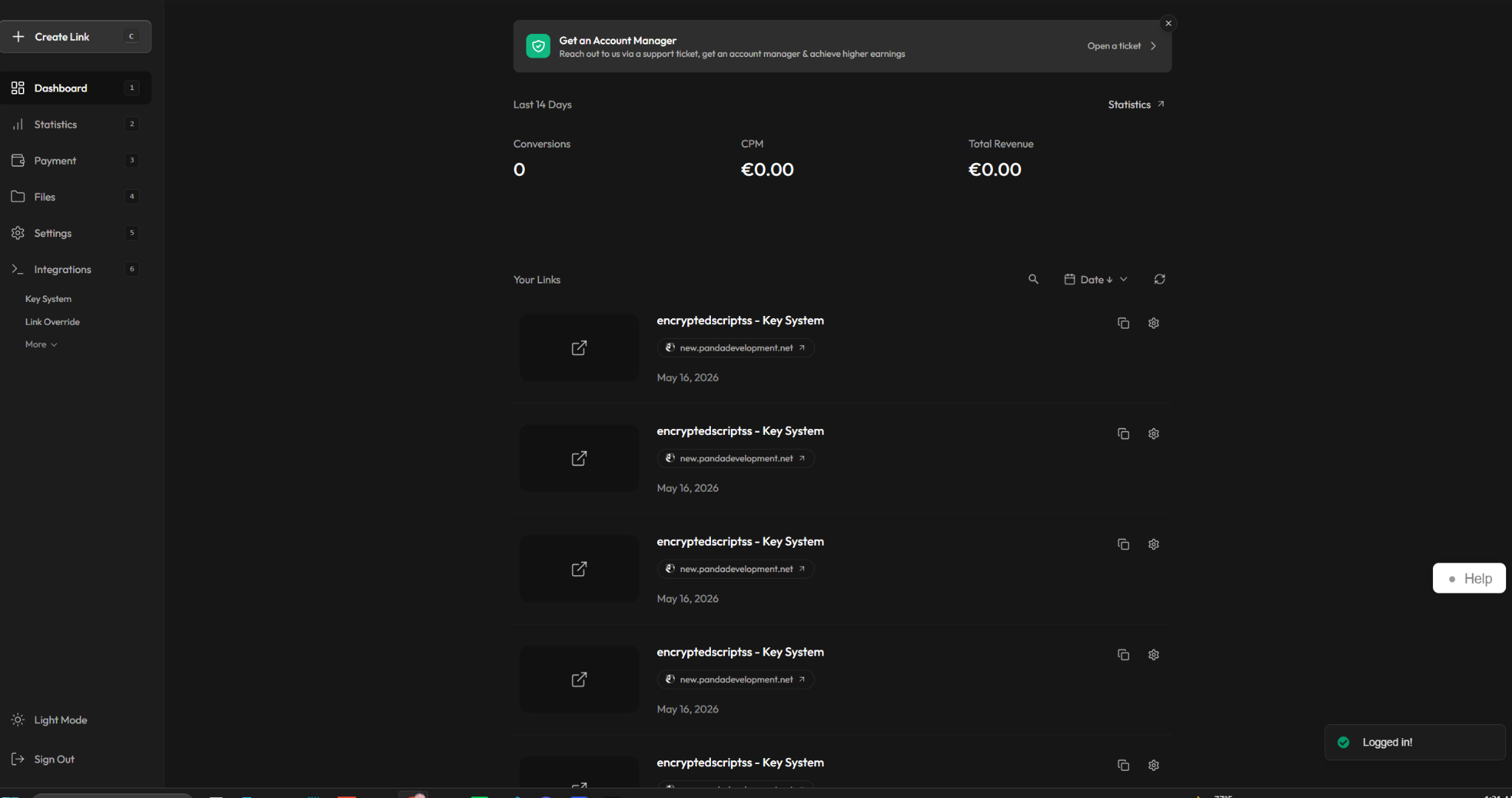
Step 2 — Navigate to Integration
In the sidebar, click Integration.
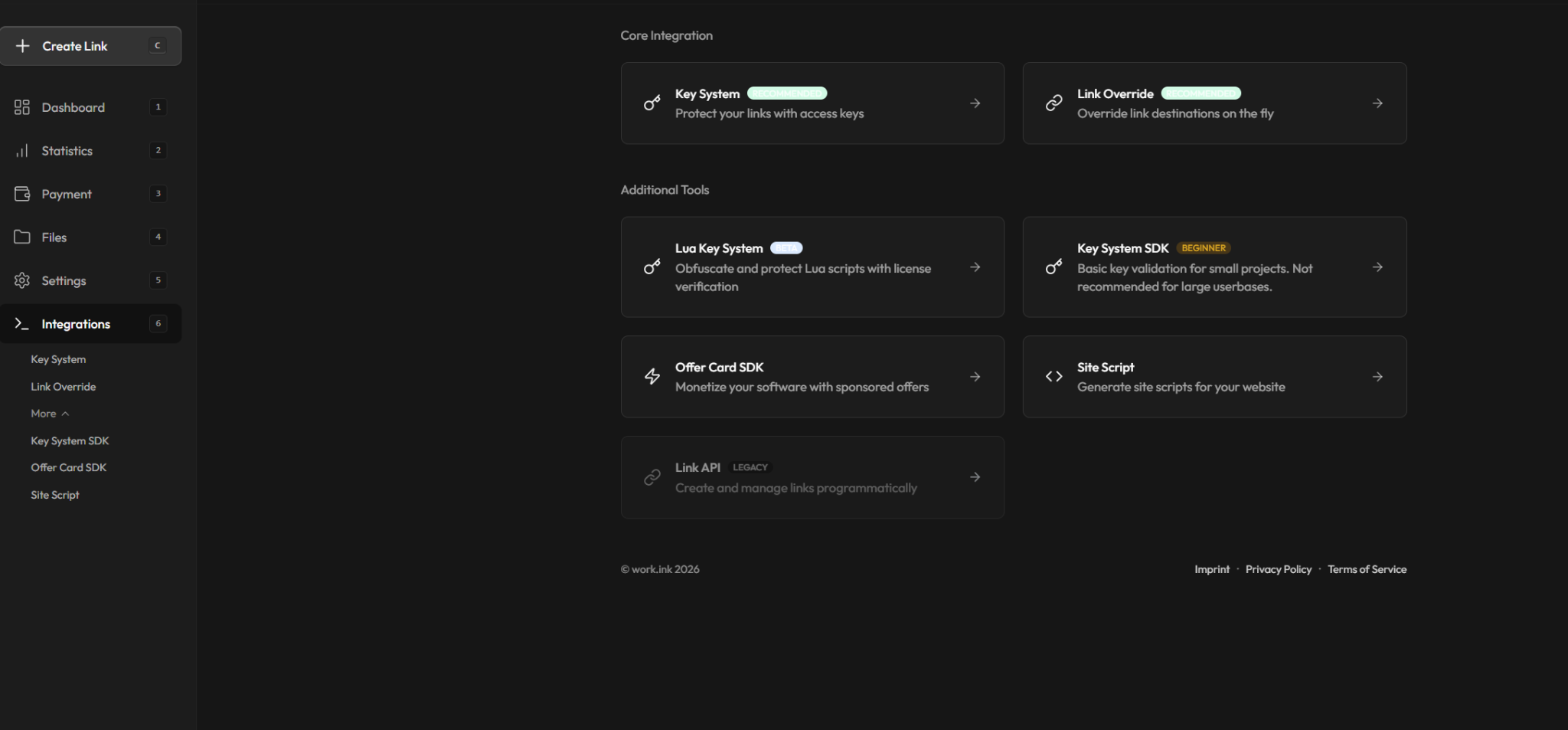
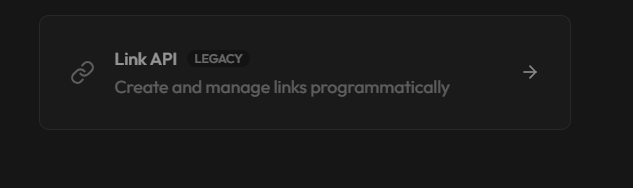
Step 3 — Open Link API
Click Link API.
Step 4 — Open API Keys, show, and generate
On the Link API page, navigate to API Keys.
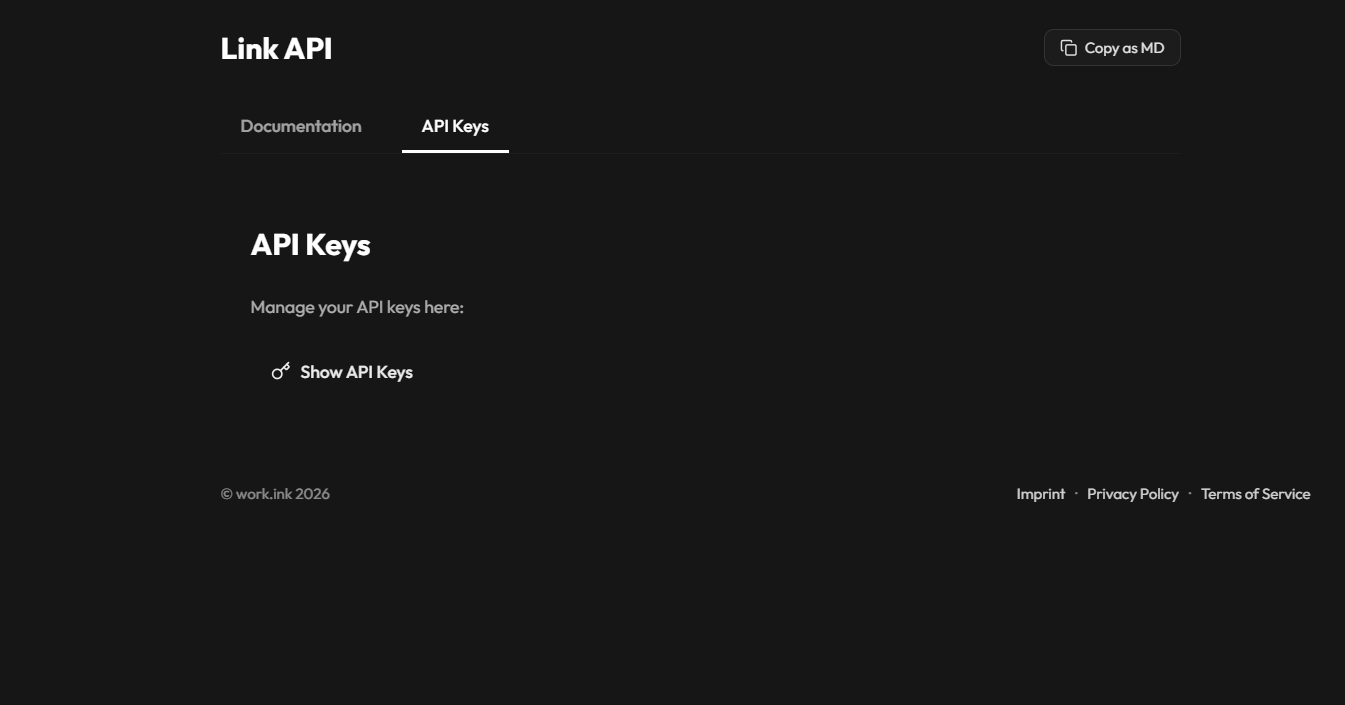
Click Show API Keys.
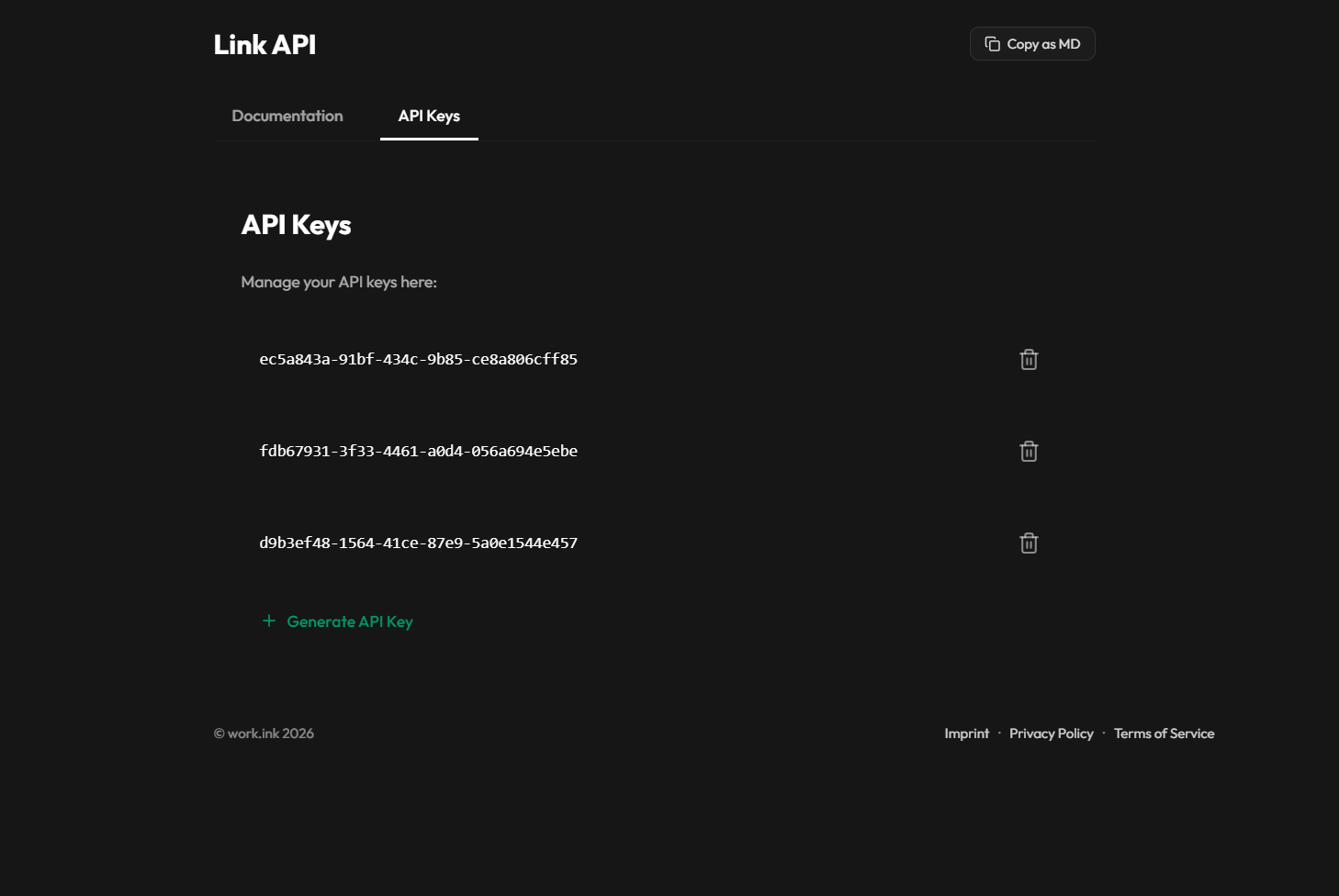
Then click Generate API Key and copy the key it produces.
Step 5 — Paste into Panda Auth and save
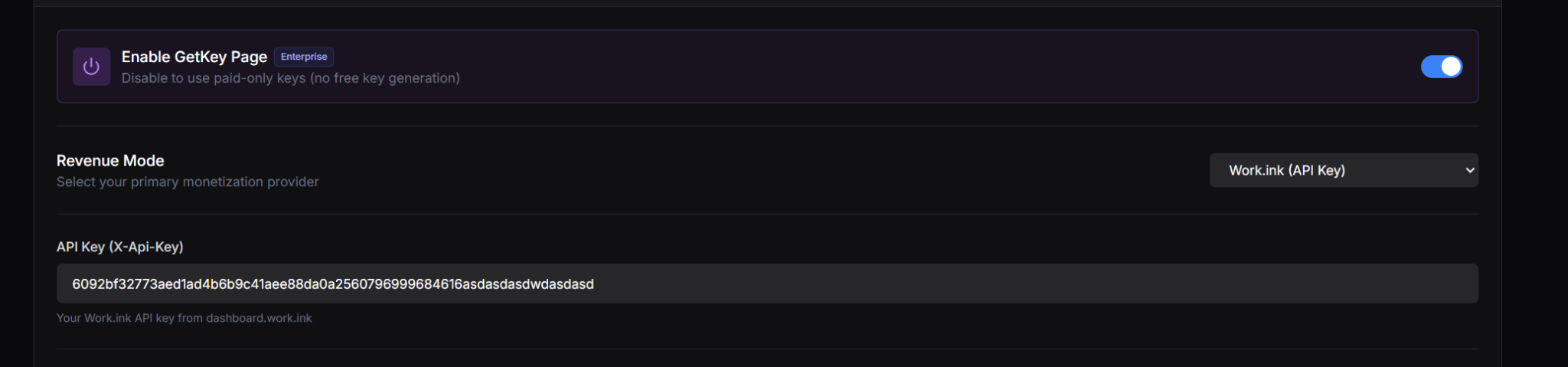
Back in Panda Auth, go to Monetization Settings → Revenue Settings, select Work.ink from the Revenue Mode dropdown, paste your API Key, and click Save Changes.
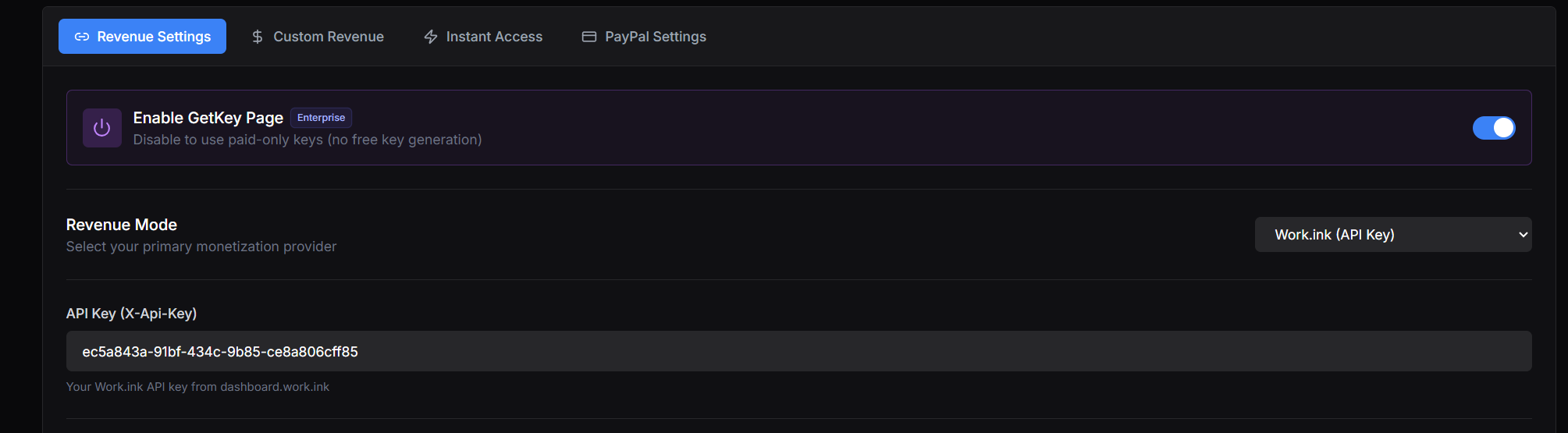
Done