For Developers · Monetization & Growth
Instant Access Mode
Instant Access is a special mode where users skip every checkpoint and receive a key the moment they hit your get-key page. No ads, no captcha, no monetization — just a key. Designed for time-windowed promotions like weekend giveaways, community milestones, holiday events, and launch days.
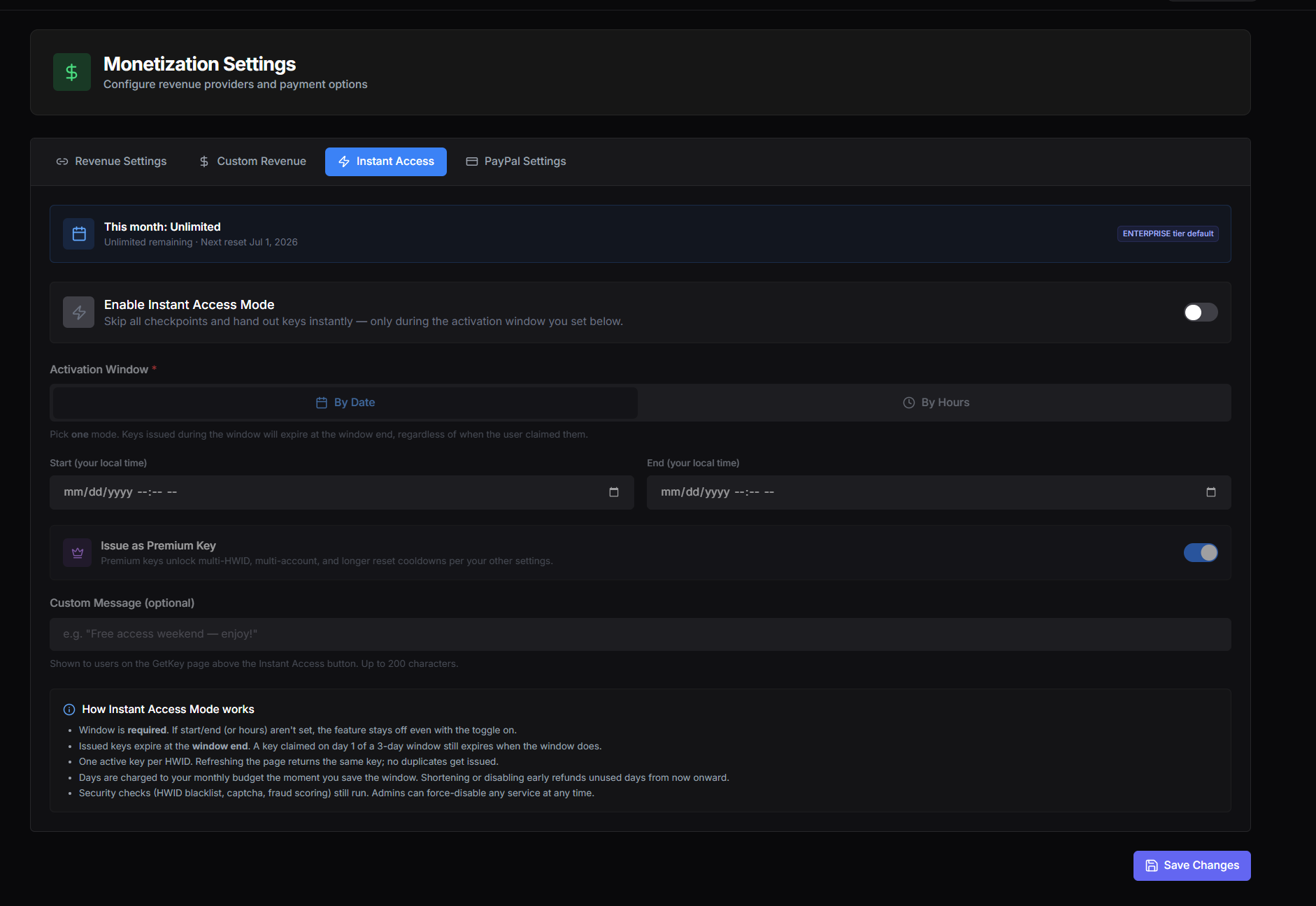
Monthly Budget Banner
At the top of this tab you will see a status banner showing your monthly Instant Access budget. It looks like "This month: Unlimited" or "This month: 7 of 14 days remaining."
What it means: Instant Access is metered by days of activation per month. The number of days you can run Instant Access depends on your account tier — higher tiers get more days, with the top tier being unlimited. The banner also shows when your monthly budget resets (typically the first of the next month).
How days are counted: Each day the activation window covers counts as one day toward your budget. A weekend (2 days) costs 2 days. A 24-hour window costs 1 day. A 4-hour window also costs 1 day — partial days round up. The days are deducted the moment you save the window, not when users start claiming.
Refunds: If you shorten or disable a window before its end, the unused days from "right now" forward are refunded back to your budget. Days already in the past are gone.
Enable Instant Access Mode
What it does: The master switch. When this is on, users hitting your get-key page during the activation window get a key instantly without going through any checkpoints. When this is off, the normal checkpoint flow runs.
Critical detail
- Turn it on if: You have set up a valid window and want users to get keys instantly during that period.
- Turn it off if: You want the normal checkpoint flow back, or you want to pause an active window without deleting it.
Activation Window
This is where you define when Instant Access is live. Two modes are available, and you pick one:
By Date
What it does: Set a specific start date/time and end date/time. Use this for fixed promotions — "Black Friday from Friday 9am to Monday 9am", "Weekend giveaway from Saturday to Sunday".
- Start: The exact moment Instant Access becomes active. Uses your local browser time.
- End: The exact moment Instant Access deactivates. Uses your local browser time.
By Hours
What it does: Set a rolling window in hours from the moment you save. Use this for spur-of-the-moment promotions — "Active for the next 6 hours starting now."
This mode is simpler when you do not need to schedule in advance. The hours count down from when you save the settings.
Important behavior
Issue as Premium Key
What it does: When this is on, keys issued during Instant Access count as Premium keys. Premium keys unlock the higher-tier behaviors you have configured elsewhere — multi-HWID per key, multi-account per key, longer HWID reset cooldowns, and whatever other premium perks your service has set.
Default: On. Most operators want Instant Access keys to feel like a real reward, not just "free but limited."
- Turn it on if: You want users who get an Instant Access key to receive the full premium treatment.
- Turn it off if: You want Instant Access keys to behave as standard Free-tier keys, with the same limits as a normal earned key.
Custom Message (Optional)
What it does: A short message shown to users on the get-key page above the Instant Access button. Up to 200 characters.
Why use it: Context. A user who lands on a page and gets a key for free with no checkpoints might think something is broken. A message like "Free access weekend — enjoy!" or "Community milestone reward, limited time" tells them what is happening and why.
Best practice
How Instant Access Mode works
Five things to remember
- The window is required. The toggle does nothing without start/end (or hours) configured. This is intentional — no accidental unlimited-free-keys-forever.
- Keys expire at the window end. Regardless of when the user claims them. Day-1 claimers and day-3 claimers all lose their keys at the same moment when the window closes.
- One active key per HWID. Users cannot stockpile or duplicate keys by refreshing the page. Each device gets one Instant Access key per window.
- Days are charged at save time. The moment you click Save Changes with a valid window, the days are deducted from your monthly budget. Shortening the window later refunds unused future days from "right now" onward.
- Security still runs. HWID blacklists, captchas, fraud scoring, and abuse protections are all still active during Instant Access. Admins can also force-disable any service's Instant Access at any time if abuse is detected.
When to use Instant Access
Common use cases that work well:
- Weekend giveaways or community milestones
- Major launch days (your software hits version 2.0, a holiday tied to your community)
- Recovery after extended downtime (a "we are back" gesture)
- Tier upgrade rewards (your premium tier just expanded — give the whole community a taste)
- Holiday promotions (Black Friday, Christmas, New Year)
Avoid using it for:
- Permanent free-key flows. That defeats the point of checkpoints and burns your monthly budget for nothing. Use Keyless Mode instead if you want truly free, ongoing access.
- Tiny windows aimed at specific users. If you want to whitelist one user, use Security → Trust List → Whitelist instead. Instant Access is broadcast, not targeted.
Recommended defaults
For a planned promotion:
- Enable Instant Access Mode: On
- Activation Window: By Date, with the exact start and end of your promotion
- Issue as Premium Key: On (rewards the community properly)
- Custom Message: a short on-brand line telling users what is happening